Do you love Instagram? I do! Are you on Android - I am! It seems like there are tons of posts out there all about the best apps for instagram - and they're all for iPhones. So I've been testing a few things out for all you Android users and I'm here to share! I am HOOKED on adding some embellishments and text (via insta fonts) to my instagram pictures - it just steps it up a notch if you have a few minutes. If you're on iPhone, I'll point you in the right direction...
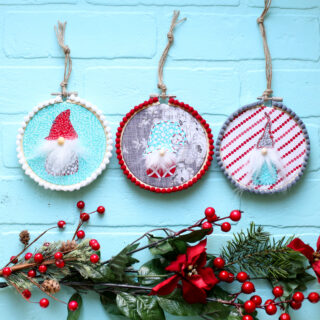
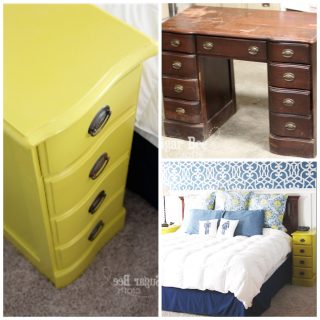
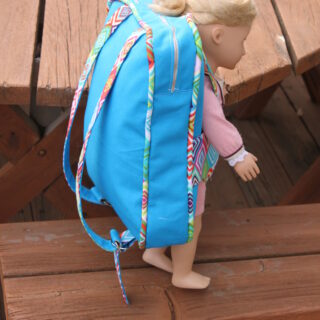
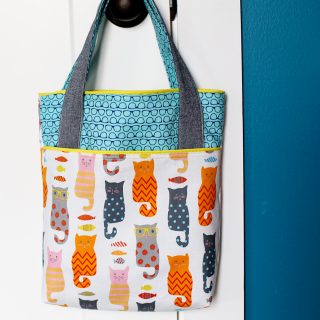
Some samples of what I've been posting lately...
Okay, here we go -- the three things I'll be talking about, you'll need these for what we're about to do:
--Instagram App (free - best social media out there - love it!)
--Phonto App (free) - how you'll put text on pictures (to be extra fun, you'll want
Instafonts from Rhonna Designs that run about $10 and/or dingbat fonts that you can find for free)
--Pixlr-o-matic (free) - for tons of overlays (bokeh, sunflare, whatever)
--You will also need a computer.
There are other ways to do this, but this is the way I figured it out to work for me.
Very first, you'll need to download Instafonts or Free Dingbat fonts (they're fonts that use an image instead of each letter). And "extract all files" after you download them.
You'll need to connect your phone to your computer as a media device. This is when you plug your charger cord thing into the USB port, and at the top it says "connected as a media device"
For awhile my phone was only charging when plugged in to the computer - it wasn't connecting as a device. But I switched cords (to the one that came with the phone) and that worked for me. Also maybe try using different USB ports and maybe one will work.
Once your phone is connected to your computer, you can use the computer to access everything on your phone. See, mine is listed as "SCH-1535" and when I open that I can see all the program files on my phone
Now, open the "Phonto" folder and then under that open the "fonts" folder - this is where you can put any fonts you want. Then open your dingbats, doodle fonts, fun fonts, etc and copy and paste them into the Phonto Folder:
You can see I've dropped a few in (and I've added several more since - you know there are free dingbat fonts that do frames, and speech bubbles, and pow signs, and arrows - it's endless!!)
There are lots of ways to use your fonts and apps - - some examples:
Just an insta-stamp from Rhonna Designs:
Built-in Texts from Phonto:
Overlays via Pixlr-o-matic:
Combining several features - - using Rhonna Designs Instafonts, Pixlr-o-matic, Photo fonts, and of course Instagram!

Let me walk you through using them and how to combine several features - it may sound like a lot, but once you get the hang of it and switching between apps, it just takes a few minutes...
To start, I like to use Instagram to make the image a square - other apps do this too, but anyways. Open your picture, crop it, leave it with no filter, and hit the "next" arrow in the upper right.
It will briefly say "processing" and then take you to the screen where you can type info - but don't do that. During the processing, your phone saved a square version of your picture (iPhones don't do it - they have to use "airplane mode").
Now go back to your home screen and open up your Phonto app. Pick the little picture image thing at the top right to pull in a picture - and upload one from your device (phone). Then you'll have bunches of choices - your phone has several folders and a folder for each app - - so if you look in the "instagram" folder, your image should be there, square and ready. Use that one. (the image will also be in your "camera" folder, but that's the old version, before you made it square)
Now, to add text, click that pencil icon then touch your image where you want to add the text. The way instafonts and doodles and dingbats work is that each design works as a letter - normally capital letters. So if I type a "B" it will put up a design (maybe a heart, or whatever) and if you type a "C" it'll be something else. It's like trial and error.
So type a letter - - and if it just comes out as a regular letter, you're probably using a regular font. After typing it and entering it, you'll have options to change it - so pick "font" (see picture above - other options are "text" where you can retype things, "size", etc) and it's probably set to "all" which are all the fonts that Phonto comes with - and there are some pretty cool ones.
But if you want to use the Instafonts or the dingbats or whatever you put on there, switch to "my font" and they'll be listed there. So you can see I was using an Instafont, and I typed in one capital letter ( I can't remember which one) and got this - then you can drag the size thing to make it bigger.
Then I clicked on the pencil icon again and wrote in a different spot and used a dingbat font to do that swirly sun. After that hit your info button thing (next to the home button at the bottom) and choose save from the list - that will save the image with the text on it in your Phonto folder.
Now let's put an overlay on it. Go home on your phone and open up your Pixlr-o-matic App - open a picture from a file, and this time grab it out of the "Phonto" folder so that it has the text on it.
Then, click that "light bulb" icon at the bottom and scroll through all your overlay options - for this I picked "bubble". After you found one you liked, click that "save" icon and save it - this time it will save in your PixlrOMatic folder.
Still with me?! Back to home on your phone, and open up Instagram. Pick a picture from a file, and grab it out of the PixlrOMatic file - it'll have the text and overlay on it, ready to roll! Then you can add an Instagram filter if you want and proceed like you normally would through Instagram, publishing it to your feed.
Voila! you can do this! try it - -